
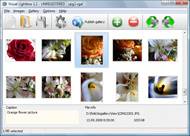




Overview

It's no secret that adding photos to your blog posts is one of the most effective ways to enhance your blog and attract attention to your writing. Flickr has millions of photos available in its database. A simple FREE tool called Flickr Gallery allows you to create a custom image gallery with a cool slide show of the most recent and most interesting photos from Flickr on your website or blog in a few easy steps. Just visit Flickr website and find photostream, photoset or a single photo you like. Enter the address of flickr page to add all photos from this page in your gallery, select the style of thumbnails and the overlay window and add the HTML embed code on your website or blog.
A few clicks and you'll see a stylish photo gallery with beautifull lightbox and zoom effects on your own website or blog!
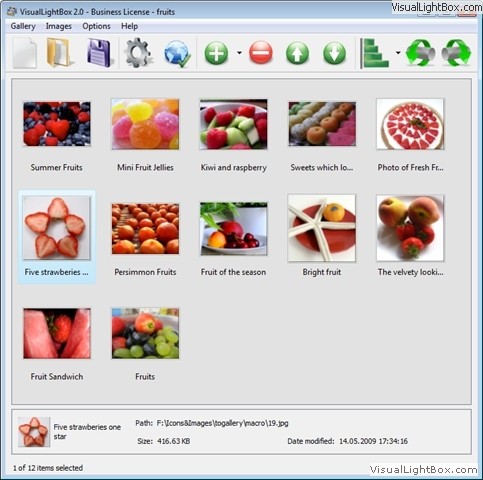
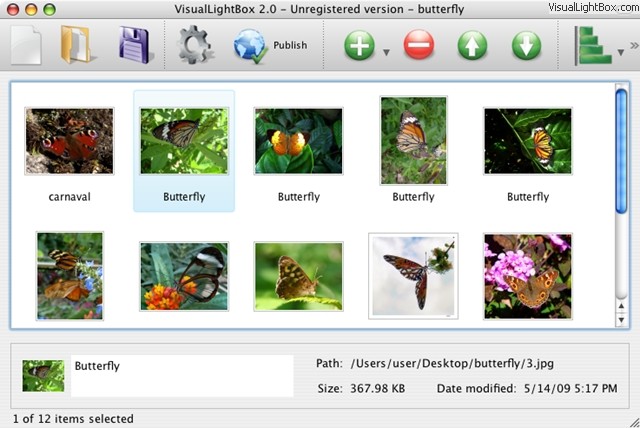
Flickr Gallery for Windows   Flickr Gallery for MAC

Want more?

Example

Lightbox gallery sample

The following image set is generated by Flickr Gallery tool. Click any picture to run Lightbox gallery.

The sample above is an in-page usage demo of Lightbox with images from Flickr. The gallery created with Flickr Gallery application is placed inside the html page. You can also check the full-page demo lightbox gallery. This example takes whole browser area to show the website gallery.Wordpress Plugin Flickr Galery Sidebar

How to Use

Step 1. Adding flickr images to your own gallery.


Locate the photo, photoset or photostream you want to use in your Flickr slideshow. Click on it to see the photo on its own page.

Copy URL of the flickr page.

Select Add images from Flickr... from the 'Add' button on the Toolbar.
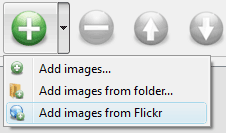
Add images from Flickr

In the appeared window paste URL of the flickr page. Specify also the number of photos you want to add from the flickr page. Flickr Gallery will now include these photos in your project.
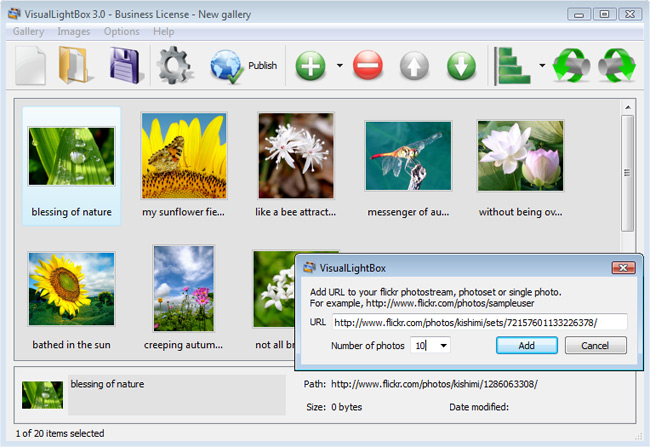
Add images from Flickr

If you have included the photos that you do not wish to be in your web gallery, you can easily remove them. Select all images that you wish to remove from photo gallery, and select Delete images. from the Images menu. You can pick and choose pictures by holding the CTRL while clicking the pictures you like.

Step 2. Adding caption.

The name of the photo on flickr page will automatically appear in the caption. When you select a photo you'll see the various info about it, such as: Path, Size, date of last change and Caption. You can add any comment or text about the photo (up to 512 symbols).

Step 3. Gallery properties.

Change the name of your flickr album, the size and quality of your pictures with Flickr Gallery. From the Gallery menu, select Properties or use "Edit Gallery Properties" button on the toolbar.

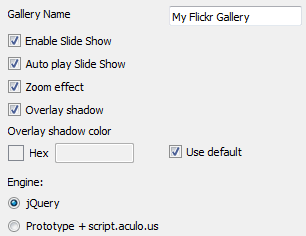
On the first tab of the Gallery Properties window you can change the name of your photo album and enable/disable the following properties: Slide Show, Auto play Slide Show, Zoom effect, Overlay Shadow. You can also set the Overlay shadow color and select the Engine you want to use (jQuery or Prototype + script.aculo.us).
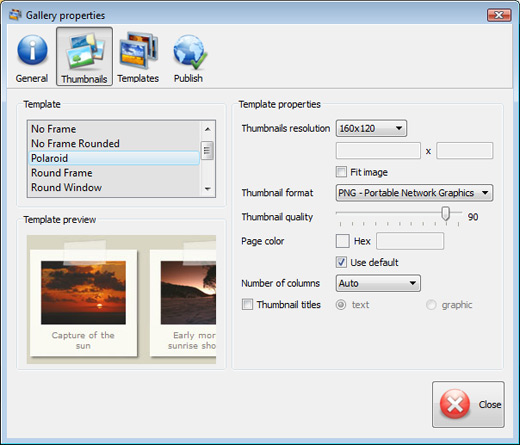
On the second tab of the Gallery Properties window you can select the thumbnail you want to use, set the Thumbnails Resolution, Thumbnails Quality, Thumbnails Titles. Select Thumbnails Format (save in PNG or JPG format). Specify the Number of columns in you photo album and the Page color.
On the third tab of the Gallery Properties window you can select the template, Image resolution and Image quality of your pictures and change the Watermark.
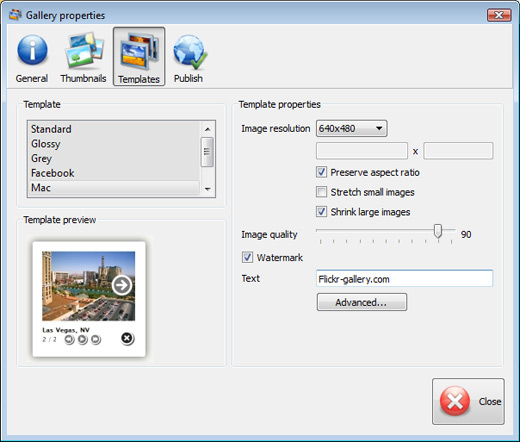
You can set up the various sizes for exported images.

Control the quality of output PNG or JPEG format image by defining output "Image quality" and "Thumbnail quality" parameters (0%…100%).

Step 4. Save your photo gallery as project file.

When you exit Flickr Gallery application, you'll be asked if you want to save your project. The project consists of the pictures you choose to put on your web photo gallery and all your settings. It's a good idea to save the project, because that will allow you to change the project in case you decide to do something different with future galleries. So click Yes, then enter a name for your project. To select the location of your project, just click the Browse folders button and choose a different location. Then click Save.

Embed Flickr Gallery Into Blogger Flickr Slideshow On Blog

Download Flickr Gallery


Download Flickr Gallery Download Free Edition
for Windows
Download Flickr Gallery Download Free Edition
for MAC

Flickr Gallery is free for non-commercial use.

A small fee is required for business use. Flickr Gallery Business Edition additionally provides an option to remove the Flickr Gallery. Com credit line as well as a feature to put your own logo to images. After you conclude the payment via the secure order form, you will receive a license key instantly by email that turns the Flickr Gallery Free Edition into a Business one. You can select the most suitable payment procedure: PayPal, check, credit card, bank transfer etc. Also you can get Business Edition for free if you help with translating Flickr Gallery into your native language, please contact us at for more info.

Flickr Slideshow Website Integration

Buy Flickr GalleryBuy Business Edition
for Windows

$49
Single Website
$69
Unlimited Websites
Buy Flickr GalleryBuy Business Edition
for MAC

$49
Single Website
$69
Unlimited Websites

Support

For general help, feature requests, troubleshooting contact Customer Support at . Make sure to include details on your Flickr Gallery version, a link (or relevant code), operating system and a browser.Best Flickr Gallery Embed

Feedback

    * I am thrilled with what this tool can do for me thanks for all the hard work that must have gone into it.

    * I ran into your website wile looking for a JavaScript to manage a personal Photo Gallery. I downloaded the trial version and immediately fell in love with your Flickr Gallery, it is one of the best products I’ve ever found; it is very user friendly and easy to use and creates great Photo Galleries.

    * First of all, I love you Flickr Gallery. I think it's beautiful! I purchased the lightbox “business edition” yesterday, and I’m very happy how easy it is to use. Found this to be one of the fastest ways to get a gallery on the web. Thanks.Web Widgets Flickr

    * I LOVE your free Lightbox2 software tool and will purchase the business version shortly. I have seen the Lightbox JS effect used with video tutorials and I was hoping you have a version for video that I can purchase.
Video LightBox: http://videolightbox.com

FAQ

Q:How do I embed the lightbox image gallery into an existing page?

A:To install Flickr Gallery gallery on your page you should:

1. Create your gallery in Flickr Gallery and publish it on a local drive in any test folder.
2. Open index.html file from the saved folder in any text editor.
3. Copy code for the HEAD section and paste it inside the HEAD section of you own webpage, for example:

<head>
...
<!-- Start Flickr Gallery.com HEAD section -->
<link rel="stylesheet" href="engine/css/vlightbox.css" type="text/css" />
<style>#vlightbox a#vlb{display:none}</style>
<link rel="stylesheet" href="engine/css/Flickr Gallery.css" type="text/css" media="screen" />
<script src="engine/js/jquery.js" type="text/javascript"></script>
<script src="engine/js/jquery.tools.min.js" type="text/javascript"></script>
<script src="engine/js/visuallightbox.js" type="text/javascript"></script>
<!-- End Flickr Gallery.com HEAD section -->

...
</head>


4. Copy code for the BODY section and paste it inside the Body section of you own webpage in the place where you want to have a gallery, for example:

<body>
...
<!-- Start Flickr Gallery.com BODY section -->
<div id="vlightbox">
<a rel="lightbox_vlb" href="data/images/dscn6831.jpg" title="DSCN6831"><img src="data/thumbnails/dscn6831.png"><span></span></a>
<a rel="lightbox_vlb" href="data/images/dscn6823.jpg" title="DSCN6823"><img src="data/thumbnails/dscn6823.png"><span></span></a>
<a rel="lightbox_vlb" href="data/images/dscn6819.jpg" title="DSCN6819"><img src="data/thumbnails/dscn6819.png"><span></span></a>
<a id="vlb" href="http://Flickr Gallery.com">Photo Gallery For Web by Flickr Gallery.com v2.1</a>
</div>
<!-- End Flickr Gallery.com BODY section -->

...
</body>


5. Copy 'data' folder with images and thumbnails and 'engine' folder with .css and .js files into the same folder with your own webpage.
You can find the example on our website:
http://www.Flickr Gallery.com/#example


RELATED

Flickr Slideshow | szelee One way to embed Flickr slideshow in blogs could be traced to Paul Stamatiou who investigated the API and showed how it could be done. Based on this idea, many sites like this and this offer auto generation of the HTML codes when the user inputs the name of the user and set

Flickr Slideshow - create flickr photo slideshows for your Yahoo's photosharing service Flickr is almost certainly the best online photo management and sharing on the web, Flickr Slideshow allows you to easily create a custom flickr slideshow on your website or blog. It is one handy tool, just enter

How to Use Flickr Embedding the Flickr Slideshow into a Blog, or Web Page etc then be used on a Blog to embed the Sandcastles flickr slideshow. The default slideshow size is 500x 500, but I made all my pictures 550 pixels. wide,

Make DVD Slideshow for Flickr Photos And then right-click on menu to customize Flickr DVD menu. Note that you can change slideshow DVD menu background music to favorite songs. To do so, click the browse button and select a music file from local hard drive. Step 4: Burn Flickr DVD slideshow with menu

Flickr Slideshow : Flickr Gallery Flickr Slideshow. Don't allow your website visitors to get lost! A simple FREE tool called Flickr Gallery allows you to create a custom image gallery with a cool slide show of the most recent and most interesting photos from Flickr on your website or blog in a few easy steps

Domino Flickr Slideshow | Hatch: The Design Public® Blog Luciana just emailed me that The Flickr slideshow is scheduled to go live on dominomag.com today! There will be an image on their homepage to lead you to the slideshow, or go to their "Galleries" page (within the "accessories" pull-down menu) where the flickr slideshow will live

WordPress " flickr-slideshow-wrapper " WordPress Plugins flickr-slideshow-wrapper. Including standard flickr slideshows into your blog. Call your Flickr slideshow by adding [set_id=XYZ] to your content. The influence on the standard functionality of the flickr API is very limited. Adapting width and height of

FlickrSlidr - Embed Flickr Slideshows into Your Blog If you like those nifty Flickr slideshows and would like to be able to easily embed them into your website, seek no further. FlickrSlidr is a new tool

Slideshow On Blog : Free SlideShow Software Free Slideshow Creator! Slideshow On Blog. Create an online photo album in minutes with Flash SlideShow Maker!. Add Gallery To Website Flickr and Photobucket support. Use most interesting photos from Flickr and Photobucket on your site or blog in a few easy steps

How to put a Flickr Slideshow on your blog After my inclusion of a slide show along with my daily photo for September 15th, 2006, some people asked how to do it. I will not bore you or punish you with How to put a Flickr Slideshow on your blog

Blog Slideshows, Part 2: Turn Text Feeds Into a Photo The Yahoo Pipe there queries images directly from Flickr and manipulates the feed. The Pipe is then run and the RSS feed generated can be used in SplashCast to create an RSS-based slideshow. What if you just want some eye candy for your blog but do not want to specify a Flickr tag?

Our new slideshow: pass the popcorn! " Flickr Blog We've launched a new and improved fullscreen slideshow on Flickr, designed and rebuilt from the ground up to A slideshow is available from just about every page where you see a group of photos on Flickr: photostream pages, sets, tag pages, group pools and

How to embed a Flickr slideshow in your blog There's a lot of ways to get your Flickr photos onto a web page or blog post, but few are as clean and elegant as How to embed a Flickr slideshow in your blog. by Jordan Running on

How to embed Flickr slideshows Blogger Paul Stamatiou details how to embed the default Flickr slideshows on your own web page or blog. All you need to do is embed the following on your page (minus the line breaks)

How to add Flickr Slideshow into your blog or website? You can simply add any of your flickr slide show into your blog or website just with few simple steps. First of all you need to know your flickr

Flickr Galleries for Your Blog | DailyApps Do you want to add that super cool Flickr Slideshow to your blog. While Flickr itself doesn't have any slideshow tool that you can embed in your blog. 123Flickr 123Flickr is a gallery creating utility that generates code for you to insert a cute

How to insert a Flickr slideshow in a wordpress.com blog How to insert a Flickr slideshow in a wordpress.com blog. Posted on August 23, 2010 by And what's really cooler is that you can insert beautiful Flickr slide shows in a blog post or side bar of a wordpress.com blog!

Photo Flash Gallery|PDF|Video: Embed the Flickr Photo Embed the Flickr Photo Slideshow to your Blog. Recently, I have been studying flickr and deeply in love with it. I upload a lot of my favorite photos and share them with friends on flickr. And I always wondered how to embed a flickr slideshow on my personal blog

Flickr: Help: Blogging Flickr is almost certainly the best online photo management and sharing application in the world. Show off your favorite photos and videos to the world, securely and privately show content to your friends and family, or blog the photos and videos

YouTube - ‪How To Create A Flickr Slideshow In Your Blog Excellent Beth's Blog tutorial on creating and embedding a slideshow in your blog using Flickr. Check out Beth's blog at: http://beth.typepad.com/beths_blog

Best free flickr blog downloads. Embed Flickr slideshow on A simple FREE tool called Flickr Gallery allows you to create a custom image gallery with a cool slide show of the most interesting photos from Flickr on your website or blog in a few easy steps. You'll see a stylish photo gallery with beautiful lightbox effects. file size: 11898k

MSDN Blogs blogs.msdn.com/llobo is a resource which provides insight and tutorials/samples on WPF/Silverlight for a beginner/expert [flash] developer. Its a slide show which gets images from Flickr based on tags

flickr blog Software - Free Download flickr blog - Top 4 Download flickr blog Software - Free Download flickr blog - Top 4 Download - Free Download Software

Embedding A Flickr SlideShow In Your Blog Sidebar | The Have you speculated if it is possible to embed a Flickr Slideshow in a sidebar rather than in a post? Well Betsy asked because she wants to add one to her Merit

How To Create Flickr Slideshows You know, the fact is that some folk just don't want to troll through your thousands of images. They like them, but they can't be bothered. What they want is a