
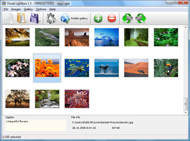


Overview

It's no secret that adding photos to your blog posts is one of the most effective ways to enhance your blog and attract attention to your writing. Flickr has millions of photos available in its database. A simple FREE tool called Flickr Gallery allows you to create a custom image gallery with a cool slide show of the most recent and most interesting photos from Flickr on your website or blog in a few easy steps. Just visit Flickr website and find photostream, photoset or a single photo you like. Enter the address of flickr page to add all photos from this page in your gallery, select the style of thumbnails and the overlay window and add the HTML embed code on your website or blog.
A few clicks and you'll see a stylish photo gallery with beautifull lightbox and zoom effects on your own website or blog!
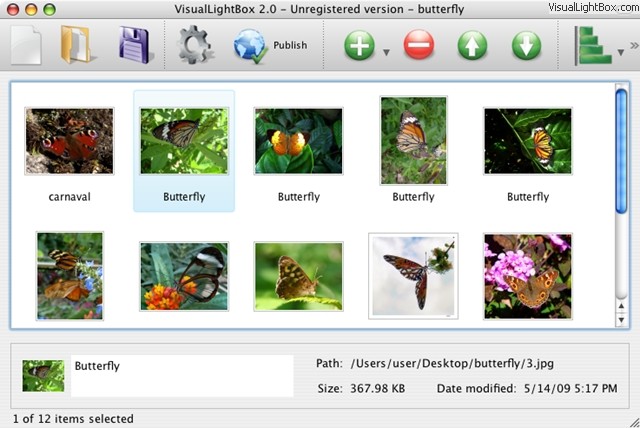
Flickr Gallery for Windows   Flickr Gallery for MAC

Want more?

Example

Lightbox gallery sample

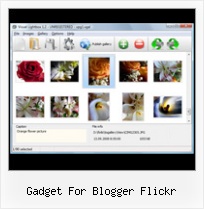
The following image set is generated by Flickr Gallery tool. Click any picture to run Lightbox gallery.

The photo gallery above is an in-page usage demo of Lightbox with images from Flickr. The website gallery created with Flickr Gallery software is placed inside the website page. You can also check the full-page demo gallery. This example takes whole browser area to show the slideshow.Pick Color Flickr Viewer

How to Use

Step 1. Adding flickr images to your own gallery.


Locate the photo, photoset or photostream you want to use in your Flickr slideshow. Click on it to see the photo on its own page.

Copy URL of the flickr page.

Select Add images from Flickr... from the 'Add' button on the Toolbar.
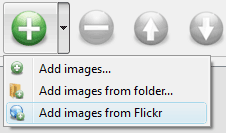
Add images from Flickr

In the appeared window paste URL of the flickr page. Specify also the number of photos you want to add from the flickr page. Flickr Gallery will now include these photos in your project.
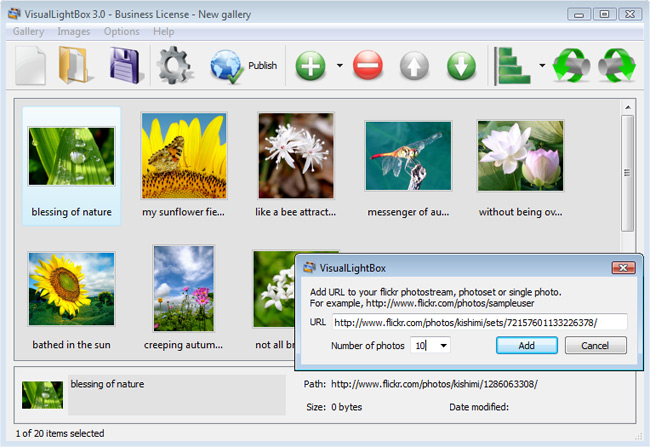
Add images from Flickr

If you have included the photos that you do not wish to be in your web gallery, you can easily remove them. Select all images that you wish to remove from photo gallery, and select Delete images. from the Images menu. You can pick and choose pictures by holding the CTRL while clicking the pictures you like.

Step 2. Adding caption.

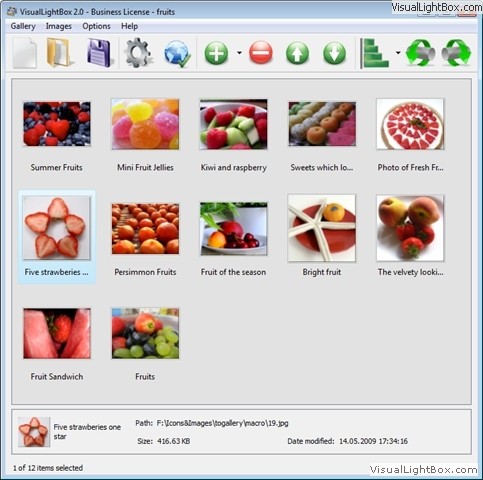
The name of the photo on flickr page will automatically appear in the caption. When you select a photo you'll see the various info about it, such as: Path, Size, date of last change and Caption. You can add any comment or text about the photo (up to 512 symbols).

Step 3. Gallery properties.

Change the name of your flickr album, the size and quality of your pictures with Flickr Gallery. From the Gallery menu, select Properties or use "Edit Gallery Properties" button on the toolbar.

On the first tab of the Gallery Properties window you can change the name of your photo album and enable/disable the following properties: Slide Show, Auto play Slide Show, Zoom effect, Overlay Shadow. You can also set the Overlay shadow color and select the Engine you want to use (jQuery or Prototype + script.aculo.us).
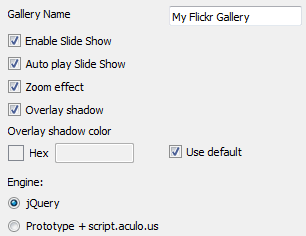
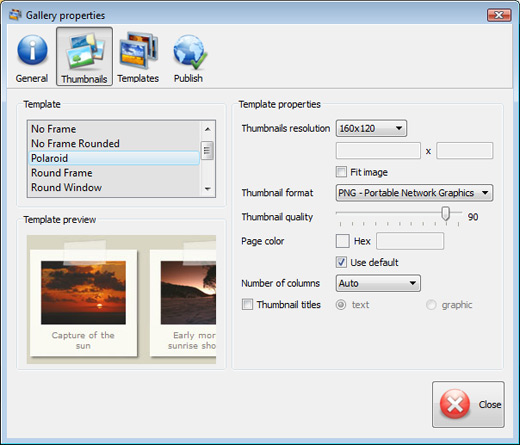
On the second tab of the Gallery Properties window you can select the thumbnail you want to use, set the Thumbnails Resolution, Thumbnails Quality, Thumbnails Titles. Select Thumbnails Format (save in PNG or JPG format). Specify the Number of columns in you photo album and the Page color.
On the third tab of the Gallery Properties window you can select the template, Image resolution and Image quality of your pictures and change the Watermark.
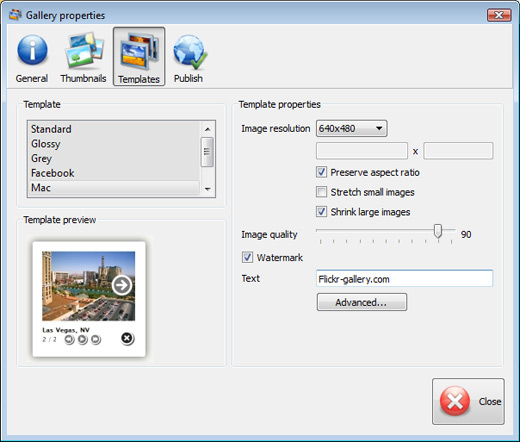
You can set up the various sizes for exported images.

Control the quality of output PNG or JPEG format image by defining output "Image quality" and "Thumbnail quality" parameters (0%…100%).

Step 4. Save your photo gallery as project file.

When you exit Flickr Gallery application, you'll be asked if you want to save your project. The project consists of the pictures you choose to put on your web photo gallery and all your settings. It's a good idea to save the project, because that will allow you to change the project in case you decide to do something different with future galleries. So click Yes, then enter a name for your project. To select the location of your project, just click the Browse folders button and choose a different location. Then click Save.

Flickr Slideshow Widget For Website Gadget For Blogger Flickr

Download Flickr Gallery


Download Flickr Gallery Download Free Edition
for Windows
Download Flickr Gallery Download Free Edition
for MAC

Flickr Gallery is free for non-commercial use.

A small fee is required for business use. Flickr Gallery Business Edition additionally provides an option to remove the Flickr Gallery. Com credit string as well as a feature to put your own logo to images. After you conclude the payment via the secure order form, you will receive a license key instantly by email that turns the Flickr Gallery Free Edition into a Business one. You can select the most suitable payment procedure: credit card, PayPal, bank transfer, check etc. Also you can get Business Edition for free if you help with translating Flickr Gallery into your native language, please contact us at for more info.

Jquery Slideshow Flickr Api

Buy Flickr GalleryBuy Business Edition
for Windows

$49
Single Website
$69
Unlimited Websites
Buy Flickr GalleryBuy Business Edition
for MAC

$49
Single Website
$69
Unlimited Websites

Support

For feature requests, troubleshooting, general help contact Customer Support at . Make sure to include details on your Flickr Gallery version, a link (or relevant code), operating system and a browser.Flickr Slideshow Options Javascript

Feedback

    * I have purchased the business and LOVE IT..Your product appears easy to use and close to what I need to help several of my clients..

    * I have installed Flickr Gallery to trial. All good, loving it!! I want to get an business version of your great programm. I love it - soo easy to use!!

    * First of all, I love you Flickr Gallery. I think it's beautiful! I purchased the lightbox “business edition” yesterday, and I’m very happy how easy it is to use. Found this to be one of the fastest ways to get a gallery on the web. Thanks.Flickr Business Steals Photos

    * I am thrilled with what this tool can do for me thanks for all the hard work that must have gone into it.

FAQ

Q:Instead of making one page with 40 photos, is there no property to make 2 or more pages?

A:You can do it in the following way:

1. Create your gallery in Flickr Gallery and publish it on a local drive in any test folder.
2. Make two copies of the generated index.html file (for example index1.html and index2.html).
3. Open index.html, index1.html and index2.html files in any text editor.
4. Find code for the gallery inside the BODY tag and cut some part of the images, so you'll have different images on each page.

<!-- Start Flickr Gallery.com BODY section -->
<div class="gallery">
<!-- leave the following code on index.html page -->
<a href="./data/images/1.jpg" rel="lightbox[sample]" title="Best Toy Ever"><img src="./data/thumbnails/1.png" /></a>
<a href="./data/images/8.jpg" rel="lightbox[sample]" title="PrueaMacro"><img src="./data/thumbnails/8.png" /></a>

<!-- leave the following code on index1.html page -->
<a href="./data/images/3.jpg" rel="lightbox[sample]" title="Macro Leaf."><img src="./data/thumbnails/3.png" /></a>
<a href="./data/images/11.jpg" rel="lightbox[sample]" title="Bell Pepper"><img src="./data/thumbnails/11.png" /></a>

<!-- leave the following code on index2.html page -->
<a href="./data/images/5_0.jpg" rel="lightbox[sample]" title="5"><img src="./data/thumbnails/5_0.png" /></a>
<a href="./data/images/6_0.jpg" rel="lightbox[sample]" title="6"><img src="./data/thumbnails/6_0.png" /></a>

<!--[if lte IE 6]><script src="engine/js/pngfix_vlb.js" type="text/javascript"></script><![endif]-->
<a id="vlightbox" href="http://Flickr Gallery.com/">Online Photo Album Sharing by Flickr Gallery.com</a>
</div>
<!-- End Flickr Gallery.com BODY section -->

5. Create links to switch between your pages, for example:
<a href="index.html">1</a>  <a href="index1.html">2</a>  <a href="index2.html">3</a> 


Q:I want to change color of the overlay shadow? How can I do this?

A:Open engine\css\Flickr Gallery.css and find the following code:

#overlay{
position: absolute;
top: 0;
left: 0;
z-index: 90;
width: 100%;
height: 500px;
background-color: #FFF;
filter:alpha(opacity=60);
-moz-opacity: 0.6;
opacity: 0.6;
}

set the background-color parameter :

#overlay{
position: absolute;
top: 0;
left: 0;
z-index: 90;
width: 100%;
height: 500px;
background-color: #FF00FF;
filter:alpha(opacity=60);
-moz-opacity: 0.6;
opacity: 0.6;
}


RELATED

Blogger Buzz: Flickr Support for Blogger in beta Flickr Support for Blogger in beta. I'm very pleased to announce that Flickr has added support for the new version of Blogger in This is something that a ton of you have been requesting, and many thanks go to the Flickr folks for upgrading their site to work with the new version of Blogger. ( The

Adding Gadgets on Blogger Video – 5min.com Adding Gadgets on Blogger - Gadgets are extra features that you can add to your Blogger blog. A gadget can be a photo-stream from Flickr, polls that your readers can participate in and even something as simple as a welcome message that your

Photoblogging with Flickr and Blogger - Photoblog with Flickr The Which? guide to creating, customising and posting images to a photoblog, including how to send photos by email or from your mobile phone to Flickr, and then blog them using Blogger

Gadgets for Blogger ~ Blogger Freebies Blogger tips and tricks for Google Blogger platform. Total blogger training, Blogger Hacks, Blogger Template and Search engine optimization

Custom Slideshow Gadget for Blogger. ~ The Blog Doctor The Blog Doctor, blogger Hacks, Blog design, Blog Template, SEO, Adsense, Blogging Tips and Tricks, Making money through blogs, PPC gadget-for-blogger.html">Custom Slideshows. In the above code replace "PUT FEED URL HERE" with the link of the RSS feed of your pictures album at Flickr/Photobucket

5 Fun Blogger Gadgets For Your Blog | A Blogger's Books It showcases your most recent pictures uploaded on flickr and adds interest to a new blog when you're still not too sure of what gadgets you want included. It adds colour, a bit of fun, and something extra for your new readers to look at while you build your blog

Vanilla Blogger Gadget | Flickr - Photo Sharing!

Liz Castro on HTML, XHTML, and CSS: How to create a Flickr It's not nearly as nice as Blogger's Slideshow gadget. So how do you get Blogger's Slideshow gadget to show only the photos from a particular Flickr set? Maybe you have several different blogs and you want each one to feature photos from a different set on Flickr

Flickr Photostream gadget not working - Blogger Help As not much is going on here to help, I have done some search and found another way to ad my Flickr Photostream to my blog. http://bal00sblog.blogspot.com/2008/08/adding-flickr-gadget-to-blogger.html

Flickr Slideshow Gadget : Flickr Gallery Flickr Slideshow Gadget. Make it easy for people to find all your photos on the site! Try Flickr Gallery!. Organise Contacts Flickr How do I use the Blogger slideshow gadget for a flickr *group How do I use the Blogger slideshow gadget for a flickr *group I'm able to use the

How to Use the Google Blogger Slideshow Gadget - For Dummies Give your Google Blogger blog a personal touch by using the Slideshow gadget to add a slideshow of photos or images. The Slideshow gadget makes adding your favorite

Blogger: Google Adds Blog Stats, Popular Posts Gadgets' And Google added two new gadgets to Blogger in Draft. The data for these gadgets is automatically taken from Blogger Stats. To use them, go to Design | Page Elements, and click on

Blogger Gadgets (Page Elements or widgets) ~ Blogger Book Peter, thank you so much for spelling it out with a screenshot no less! When I go to add a gadget - Add a Slideshow - using Flickr (where I just uploaded photos in order to do this) it asks for a username. When I put my name in (either Flickr user name or Blogger) nothing comes up and then when I go

Magasin Tres | FalconHive Similar with Magasin Cuatro, Magasin Tres is yet another professionally designed magazine for you to use on your business. Experience Magasin Tres Blogger Also, is there any code you can add to the HTML for the RSS gadget in Blogger that will open a new window when the user clicks on the headlines in

Blogger Tutorial about Featured Gadgets | category Featured Gadgets.How to in blogger is the most complete blogger tutorial, blogger tricks, free blogger templates. Category page 0 Flickr Photostream gadget is a gadget or widget to display the latest photos from flickr in the form of thumbnails. Flickr Photostream gadget is very suitable for those

Chinson's: Google Gadget:Flickr Photos for iGoogle For people who want to hidden the profile, please use NSID in the gadget instead. Please make the change to your iGoogle/blogger/site. Thanks. S Kiekbusch wrote a Flickr module Fresh Flickr Widget for Google Personalized Homepage (iGoogle). I tried to impove it by adding more changeable

Lijit | Press Release - October 16, 2009 Lijit Networks Unveils Blog and Social Content Search Gadget for Blogger TM Enabling readers of Blogger blogs to leverage search and discover a unified set of results across a publisher?s blog as well as social content sources such as Twitter, Facebook, Flickr, LinkedIn and YouTube is

Add Flickr photostream/slideshow widget | Blogger Sentral It will use Blogger slideshow gadget as a base. The slideshow will display 20 of your most recent Flickr photos. The widget makes use of your Flickr photostream feed url, so your first step is to find that url. (for Picasa slideshow, read How to embed Picasa slideshow in a blog)

Gadget Review: GiSTEQâ"¢ PhotoTrackrâ"¢ | Blog Consultant Update! The GiSTEQ PhotoTrackr now supports MAC. On August 7th I received a fantastic product to review, the GiSTEQâ"¢ PhotoTrackrâ"¢. I put it PhotoTrackrâ"¢ is for photographers (professional and amateur), especially those who take photos and post them to Flickr and other online

Lijit Networks Unveils Blog and Social Content Search Gadget Lijit Networks Unveils Blog and Social Content Search Gadget for Blogger™ Featured search widget unifies Blogs, Twitter, Flickr, YouTube, Del.icio.us and many other social content items for world's largest blogging platform. ShareThis Email PDF Print

Blogger Goes Lijit With Search - The Blog Herald | The Blog Well now the search specialists have unveiled a new tool: Blog and Social Content Search Gadget for Blogger. blog as well as social content sources such as Twitter, Facebook, Flickr, LinkedIn and YouTube is a tremendous value-add for Blogger publishers

Flickr Gadget - MediaMentalism From YouTube camcorders to Facebook phones, MediaMentalism focuses purely on gadgets that get the most out of social media

How to Add a Flickr or Picasa Slideshow to Your Blogger Blog To Add a Slideshow to Your Blog using Flickr or Picasa. Go to your Blog dashboard press "Design", this will take you to "page elements" and the "Add and arrange page elements". Here you will see a "map" of the layout of your Blogger Blog. Add a Gadget

Blogger Buster: Blogumus for your Flickr Photos! Roy Tanck's Flickr Widget requires Flash Player 9 or better. Get this I hope you enjoy using this widget to enhance your own Blogger powered blogs! Let us know what you think about Roy's Flickr widget by leaving your comments below. Filed under: Gadgets View 18 Comments. Like to share?

Gadgets For Vista - Flickr Gadget Gadgets for Vista is a library of gadgets for Windows Vista. Vista gadgets are small tools which install in the Windows sidebar on the desktop. There are several types of gadget, weather, news, search engines, videos, games, radio etc